mirror of
https://github.com/pldubouilh/gossa.git
synced 2026-08-29 05:16:33 -04:00

68 lines
2.7 KiB
Markdown
68 lines
2.7 KiB
Markdown
gossa
|
|
=============
|
|
|
|
|
|
|
|
[](https://github.com/pldubouilh/gossa/actions)
|
|
[](https://hub.docker.com/r/pldubouilh/gossa)
|
|
[](https://hub.docker.com/r/pldubouilh/gossa)
|
|
[](https://github.com/pldubouilh/gossa/releases)
|
|
|
|
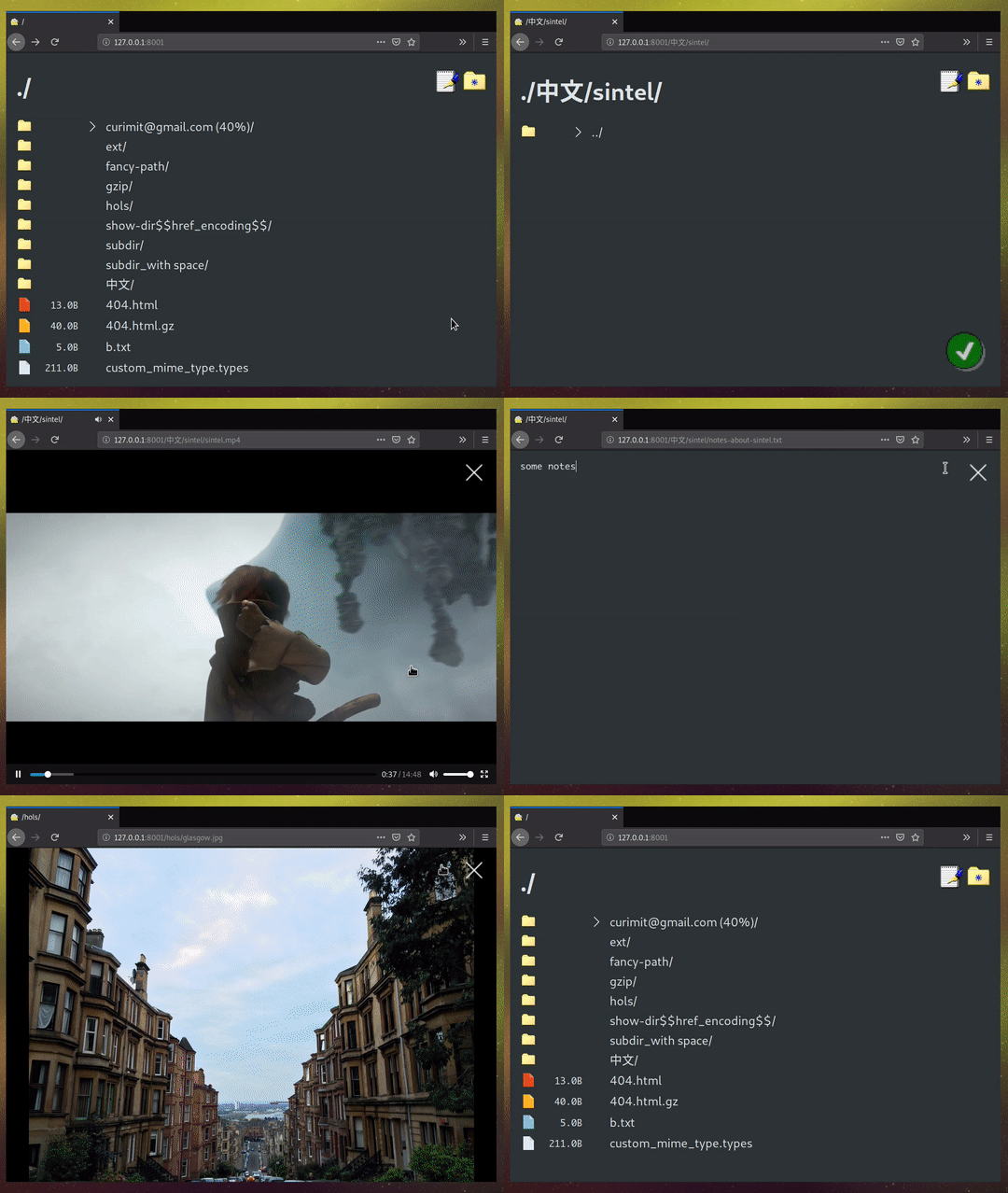
a fast and simple webserver for your files, that's dependency-free and with 200 lines of code, easy to review.
|
|
|
|
a [simple UI](https://github.com/pldubouilh/gossa-ui) comes as default, featuring :
|
|
|
|
* 🔍 files/directories browser
|
|
* 📩 drag-and-drop file/directory uploader
|
|
* 🗺️ files handling - move/rename/delete
|
|
* 📸 picture browser
|
|
* 📽️ video streaming
|
|
* ✍️ simple text editor
|
|
* ⌨️ keyboard shortcuts
|
|
* 🥂 speed - will easily fill available bandwidth
|
|
* 🔒 safe - easy/secure multi account setup
|
|
|
|
### build
|
|
built blobs are available on the [release page](https://github.com/pldubouilh/gossa/releases) - or simply `make build` this repo.
|
|
|
|
### usage
|
|
```sh
|
|
% ./gossa --help
|
|
|
|
% ./gossa -h 192.168.100.33 ~/storage
|
|
```
|
|
|
|
### fancier setups
|
|
release images are pushed to [dockerhub](https://hub.docker.com/r/pldubouilh/gossa), e.g. :
|
|
|
|
```sh
|
|
# pull from dockerhub and run
|
|
% sudo docker run -v ~/LocalDirToShare:/shared -p 8001:8001 pldubouilh/gossa
|
|
```
|
|
|
|
in a do-one-thing-well mindset, HTTPS and authentication has been left to middlewares and proxies. for instance [caddy](https://caddyserver.com/) handles this very well - have a look at this small [caddy config](https://github.com/pldubouilh/gossa/blob/master/support/Caddyfile) with authentication and option for HTTPS that works along with gossa.
|
|
|
|
### ui shortcuts
|
|
|shortcut | action|
|
|
| ------------- |-------------|
|
|
|click new folder icon | create new folder|
|
|
|click pad icon | open file editor|
|
|
|click file icon | rename item|
|
|
|double click file icon | delete item|
|
|
|drag-and-drop item on UI | move item|
|
|
|drag-and-drop external item | upload file/folders|
|
|
|
|
### keyboard shortcuts
|
|
|shortcut | action|
|
|
|-------------|-------------|
|
|
|Arrows/Enter | browse through files/directories and pictures|
|
|
|Ctrl/Meta + C | copy URL to clipboard|
|
|
|Ctrl/Meta + E | rename file/folder|
|
|
|Ctrl/Meta + Del | delete file/folder|
|
|
|Ctrl/Meta + U | upload new file/folder|
|
|
|Ctrl/Meta + D | create a new directory|
|
|
|Ctrl/Meta + X | cut selected path|
|
|
|Ctrl/Meta + V | paste previously selected paths to directory|
|
|
|\<any letter\> | search|
|
|
|